

-
Open the customer screen
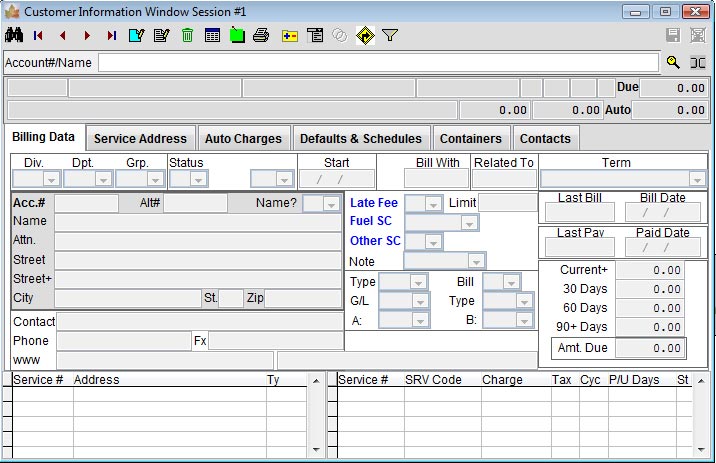
The customer screen opens with blank entries.
-
Find a customer
Enter an account number or customer name in the Account#/Name entry at the top of the screen and press Enter.

-
Work with the account
If the account exists, the Billing Data tab displays its billing information. Use the customer toolbar to navigate forward and backward, inquire about the customer, add a new customer or edit the current account.

Customer screen toolbar

| Button | Action |
|---|---|
 | Advanced search to find customers by other fields. |
 | Go to the first, previous, next or last customer in the system. |
 | Add a new account. |
 | Edit information for the currently displayed customer. |
 | Delete customer — not available; users cannot delete customers. |
 | Show a list of customers in the system. |
 | Show the notes maintenance screen for this customer. |
 | Print customer information. |
 | Inquire on customer transactions, payments and invoices. |
 | Drop-down menu of additional options for the data displayed. |
 | List customers sharing services with this account (only when a share exists). |
 | Show the billing/service location on a map (requires the mapping module). |
 | Filter clients by division, department, group or status. |
 | Cancel changes to the displayed account (Edit or Add mode). |
 | Save changes to the displayed account (Edit or Add mode). |
Billing Data tab
| First row | Account number, record name, address, division number, group number, account status and account sub-status. |
|---|---|
| Second row | Notes posted to the account, charges due, taxes and total amount due for the account. |
Field reference
- Account #
- A unique account number assigned by the system when an account is added. Once created, an account number cannot be used again.
- Alt #
- A user-defined alternate account number or name, normally used to keep an account number from a previous manual or computer system. Keep it unique if it will be used to locate accounts.
- Bill With Acc
- The account number of the parent company of the account in the Account # field. User defined and entered.
- Div #
- The division the account belongs to.
- Dept
- The department the account belongs to.
- Group
- Group billing — divides accounts into billing groups, e.g. 1 = advanced billing, 2 = prior-month billing.
- Name (Y/N)
- Select Y when the customer field holds a person's name (e.g. Smith, Mr. John); select N for a business name.
- Name
- The business name.
- Street / Street +
- The service street, plus any additional street address information.
- City / State / Zip
- The city, state and zip code for the service.
- Phone / Fax
- The primary phone number and fax number.
- Contacts
- Name of the person to contact, with their phone, fax, pager and cell numbers.
- Email / www
- Email address and website of the business.
- Start
- The date of first service for this job.
- Status
- Account status and activity.
- Billing
- The type of billing.
- Terms
- Payment terms agreed for the due date.
- Pay date
- The date the amount charged for this service is due.
- Late Fee
- Whether late fee charges apply to this account.
- Taxes
- The tax code this service is billed with.
- G/L
- Default general ledger code for this account, maintained in user-defined system tables.
- Deposit
- Amount deposited, with status A (Active) or T (Terminated).
- Dep. Date
- The date the deposit was received.
- Type
- The code for the type of service for this job.
- Bill Note / Code-A / Code-B
- Billing note and user-defined codes.
- Last Bill / Bill Date
- The invoice number and date of the last bill sent.
- Last Pay / Paid Date
- The invoice number and date of the last bill paid.
- Amt Due
- The total current amount due.