
The employee screen opens with the first entered employee, or a blank entry if no employees have been entered.
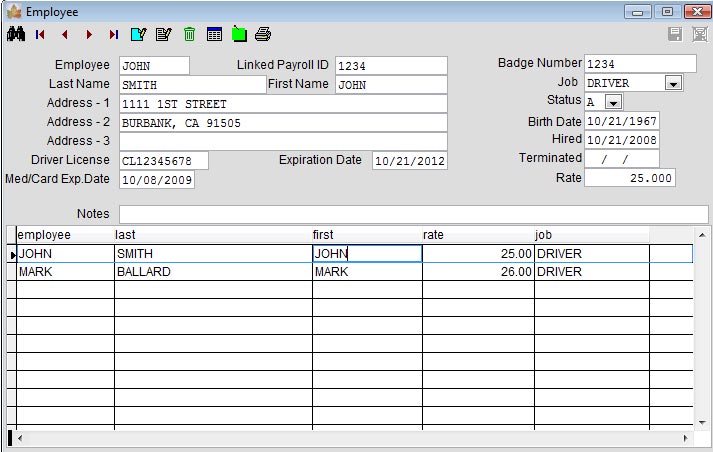
Once the employee information is displayed, use the toolbar to navigate forward and backward, inquire about the employee, add a new employee or edit the current employee.
Employee screen toolbar

| Button | Action |
|---|---|
 | Advanced search to find employees by other fields. |
 | Go to the first, previous, next or last record in the system. |
 | Add a new employee. |
 | Edit information for the currently displayed employee. |
 | Delete employee — not available; users cannot delete employees. |
 | Show a list of employees in the system. |
 | Show the notes maintenance screen for this employee. |
 | Print employee information. |
 | Cancel changes to the displayed employee (Edit or Add mode). |
 | Save changes to the displayed employee (Edit or Add mode). |
Employee screen fields
- Employee #
- A unique employee number is required for each employee entered in the system.
- Linked Payroll ID
- A user-defined ID that links to external payroll software such as Sage Pro ERP.
- Last Name
- Employee last name.
- First Name
- Employee first name.
- Address 1, 2, 3
- Employee address — free form.